CANVA SOCIAL DESIGN GUIDE
How to Create Reusable Social Media Templates in Canva
A recurring tip, testimonial, or announcement is easier to prepare when its layout already exists. To create reusable social media templates in Canva, build one editable original, keep it as your master, and make an independent copy before changing the content for each post.
Quick Answer
Create a social design with fixed branding and clear placeholders, name it as your master, then choose File → Make a copy whenever you need a new post. Edit and rename the copy. This core workflow works with Canva Free using assets available to your account; an eligible-plan Template link or formal Brand Template is optional.
This guide is based on Canva’s official documentation checked on October 6, 2026. It is a researched workflow, not a hands-on editor test. Interface labels and plan availability can change.
1. Choose one repeatable post type
Start with something you publish regularly: a weekly tip, customer quote, product highlight, or event announcement. Choose the relevant social format in Canva for the destination you actually use.
Decide what the reader should notice first. A tip layout might need a headline and two short sentences; an event layout needs a date and action. Give each a separate master if their information structure differs. One crowded design rarely serves every purpose well.
For broader strengths and limitations, read our Canva review. Here, the goal is a reusable layout for your own recurring posts.
2. Build the master with fixed and replaceable parts
Keep the fixed parts consistent: logo position, brand colors, type hierarchy, margins, and image frame. Make the replaceable parts obvious with placeholders such as “TIP HEADLINE,” “SHORT EXPLANATION,” and “NEXT STEP.”
Use a logo or photograph you have permission to use. Choose assets available on your plan so a future copy does not unexpectedly require payment. Our guide to avoiding paid elements in Canva Free explains that check in more detail. Canva’s Content License Agreement permits social media designs, with restrictions on certain content; copying a layout does not transfer rights to uploaded or third-party material.
Before treating the design as reusable, try a short headline and a longer one. Check whether the text fits, the image crop stays useful, and the call to action is readable at a small viewing size. These are editorial checks, not claims about automatic Canva validation.
Canva’s current pricing page lists a limited Free Brand Kit with three colors. You can also apply your colors manually and use available fonts. Do not assume the Free kit includes every asset-management feature described for paid teams.
3. Name and organize the original
Use a name you can recognize later, such as MASTER – Cedar Studio – Weekly Tip – Square – v1. Store originals together in a clearly named folder or collection in Projects, and keep finished post copies distinguishable.
“MASTER” is a naming convention, not a lock. You can still accidentally change that design. The protection comes from making a separate copy before editing, checking which file is open, and returning to the master for the next post.
If you improve the layout permanently, update the master deliberately and change its version label. A campaign-specific date or offer belongs in a post copy.
4. Make a fresh copy before changing content
Open the master and choose File → Make a copy. Canva’s duplicate-design instructions say the duplicate opens in a new tab. Alternatively, from Projects, use the design’s More menu and choose Make a copy.
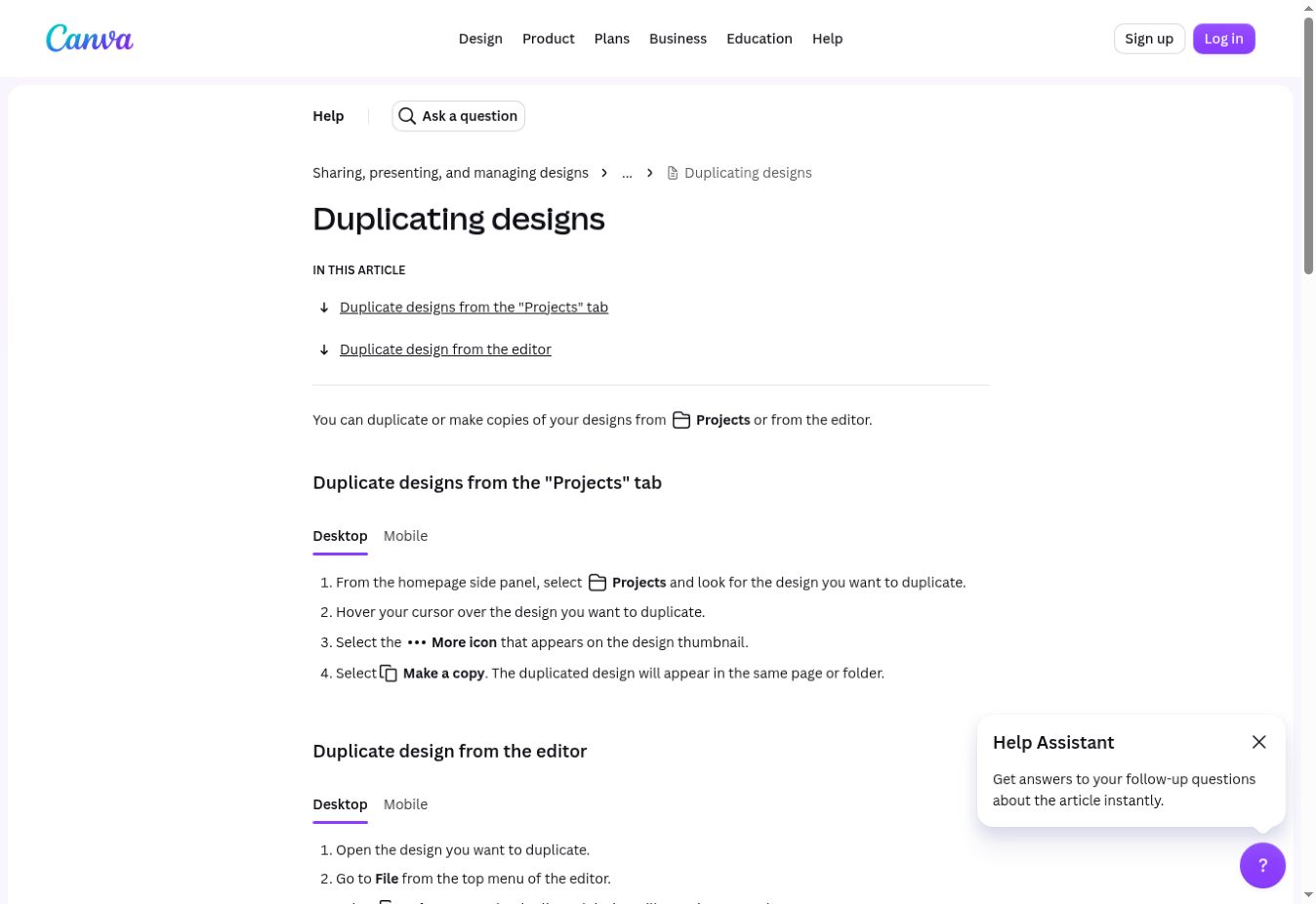
Confirm you are in the duplicate, then rename it with the campaign or posting date. Replace the headline, image, supporting text, and call to action. Recheck names, dates, links written in the graphic, spelling, and image crops.
The important habit is the order: copy first, edit second. Editing the master and hoping to restore it later adds avoidable confusion.
Hypothetical worked example: a weekly studio tip
Suppose Cedar Studio shares one home-decoration tip each week. This is an illustrative example, not a design we tested in Canva.
Its master contains a small logo, a headline area, a photo frame, two lines of advice, and a “Save this tip” footer. The first copy becomes Cedar Studio – October 12 – Layered Lighting, with the headline “Use three light sources” and a suitable room photograph.
For the following week, the creator opens the original master again and makes another copy for “Leave space around your rug.” The headline is longer, so they shorten it or adjust the copy’s text box after checking readability. The reusable original retains its placeholders and layout.
5. Duplicate pages when you need related variations
A whole-design copy and a duplicate page solve different problems. Make a copy creates another design. Duplicate page adds a page inside the design you are already editing.
Canva documents page duplication in its page-management guide. Use it inside your post copy for alternative headlines or a multi-page series. For example, a tip carousel can repeat the layout across several pages while changing each page’s message.
Duplicating a page inside the master does not preserve the master as a separate untouched file. Make the whole-design copy first when that is your goal.
For another social format, Canva Free users can create a design in the target format and copy elements across, then rebuild and check the layout manually. Eligible paid plans offer Resize and Copy & resize; choose the copy option to preserve the original. Either route needs a review of wrapping, spacing, and crops.
6. Choose the right sharing method
You do not need to share anything to reuse your own master. If someone else needs access, distinguish these options:
| Method | What it does | Useful for |
|---|---|---|
| Ordinary view or comment access | Lets recipients inspect or comment on the existing design | Feedback |
| Ordinary edit access | Lets recipients change the existing design | Collaboration on one file |
| Template link, if your plan includes it | Lets recipients use the design as a template | Independent reuse |
| Formal Brand Template | Publishes a managed brand template with applicable role permissions | Team or class brand workflows |
Canva’s sharing guide says link access defaults to Only you can access. Prefer specific recipients for client work and choose view, comment, or edit permission intentionally.
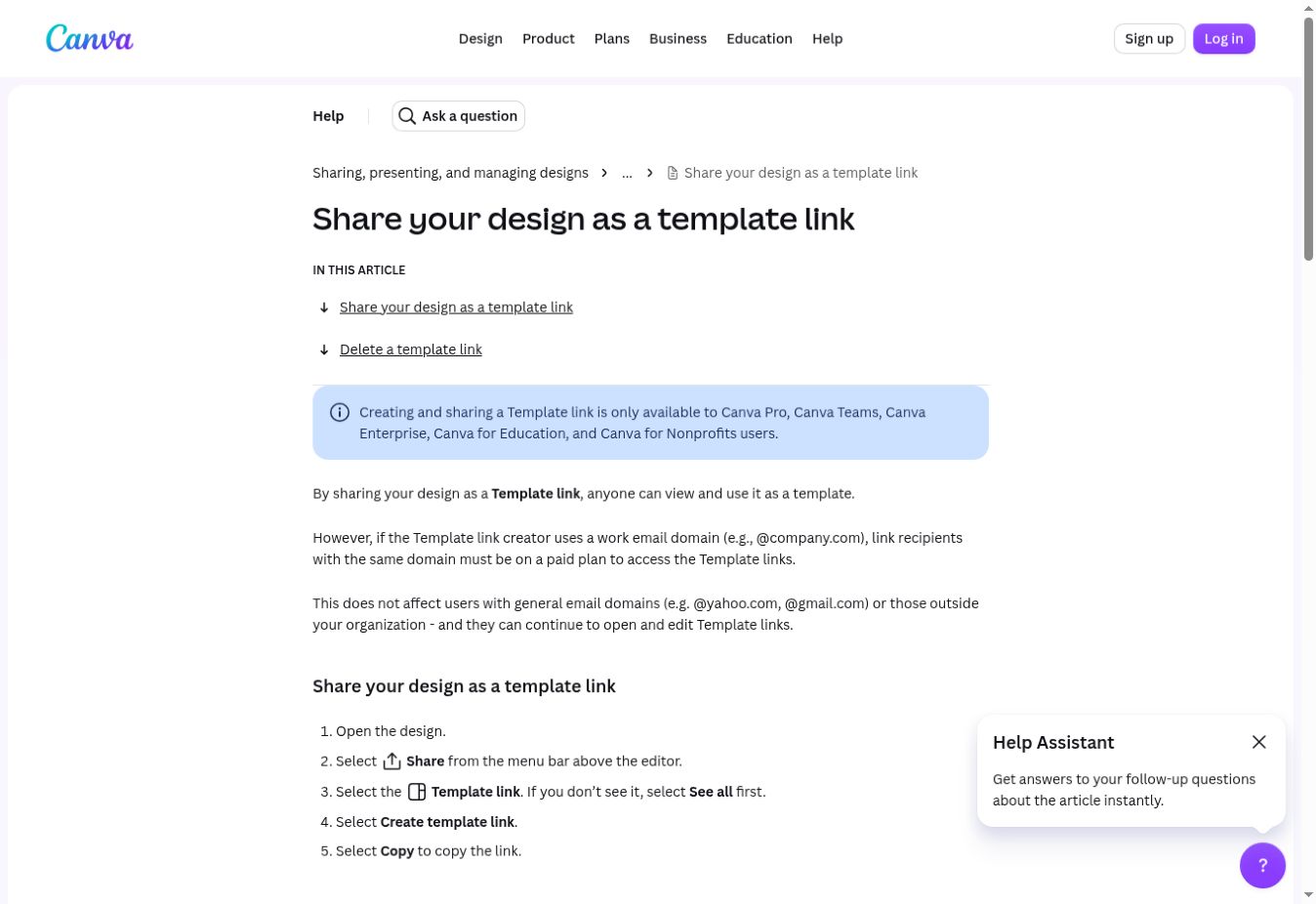
An ordinary edit link can change your original; it is not equivalent to a Template link. Canva’s Template link help lists eligible paid and organizational plans, including Pro. That article still names Teams and does not explicitly list Business, while current plan information promotes Business. Business availability remains unresolved by these sources: check the option in your account before relying on it.
The same Template link help notes a recipient restriction: if the creator uses a work email domain, recipients on that same domain need a paid plan to use the link. General email domains and recipients outside the organization are unaffected.
Formal Brand Templates are a separate managed workflow with publishing permissions. Access to edit a project does not necessarily give permission to edit or publish its Brand Template.
Before sharing publicly, remove sensitive notes, hidden pages, cropped content, and client details. Canva recommends reviewing a clean copy; copies exclude the original design’s revision history. Review the visible content too.
Free versus paid: what matters for this workflow
Canva Free is sufficient for an editable original and independent copies using available assets. Paid features can add resizing convenience, eligible Template links, and brand management. They are not prerequisites for this method.
The main limitations are practical: long text can break a layout, repeated graphics can look generic, and copying discipline can fail. Paid controls do not remove the need to review each post. Compare the relevant features in our Canva Free versus Pro guide before choosing a subscription.
Reusable-template checklist
- Choose one recurring post type and its destination format.
- Separate fixed branding from replaceable text and images.
- Check short and long content, readability, and crops.
- Name the original clearly and keep it easy to find.
- Make and rename an independent copy before editing.
- Duplicate pages inside the copy for related variations.
- Confirm permissions and remove sensitive material before sharing.
- Review the finished copy before downloading or posting.
Once the post copy is ready, use the appropriate download format; our Canva PNG, JPG, and PDF export guide covers that separate step.
Still choosing a design workspace? Compare Canva with Adobe Express for your social media workflow.
Sources and research note
Official Canva documentation checked October 6, 2026: duplicate designs, manage pages, sharing permissions, Template links, Brand Templates, resize, pricing, and the Content License Agreement. No signed-in product test was performed. The naming system, worked example, and checklist are editorial guidance.
Published October 6, 2026 · Updated October 9, 2026 · Our editorial policy