CANVA EXPORT GUIDE
Canva Export Settings: PNG, JPG, and PDF Explained
Your Canva design is finished, but the Download panel still asks you to choose a format and settings. Start with where the file will go: a website, an email attachment, and a print provider can each require a different export from the same design.
This guide covers four common formats, the controls worth checking, and a practical download workflow. It is based on Canva’s public documentation, checked on October 5, 2026; it does not describe logged-in export tests.
Quick Answer
Start with JPG for photo-heavy web images, PNG for graphics or transparent overlays, PDF Standard for documents read on a screen, and PDF Print for files sent to a printer. Match the recipient’s dimensions, file-size limit, and print requirements, then open the actual downloaded file to check it before sending or uploading.
Which Canva file type should you choose?
Use this table as a starting point, then check the actual exported file.
| Finished design and destination | Format to try | Settings and checks that matter |
|---|---|---|
| Photo-heavy image for a website or email | JPG | Check required pixel dimensions, file size, and visible compression artifacts. |
| Graphic with text, shapes, or detailed edges | PNG | Check sharpness at the intended display size and the resulting file size. |
| Logo or overlay that needs a transparent background | PNG | Enable Transparent background if your plan supports it; remove unwanted background elements. |
| Multipage handout, report, or document read on a screen | PDF Standard | Select the correct pages and check readability and any links after downloading. |
| Flyer, card, or poster sent to a print provider | PDF Print | Match the provider’s size, bleed, crop-mark, and color-profile requirements. |
These recommendations follow Canva’s file-type guidance. There is no single best file type for every Canva design: a lightweight photo and a print-ready flyer have different delivery needs.
How to download your Canva design
Canva’s documented download workflow is:
- Open the finished design and select Share.
- Select Download.
- Choose the file type.
- Adjust the available size, quality, or other format-specific options. PDF exports have Advanced Settings.
- Choose All, This Page, or Custom to select the pages you need.
- Select Download, then open the saved file to check it.
You can also save download settings. Canva says those saved settings apply to new designs of the same type on the current device, so still check them when the destination changes.
If a download triggers a paid-content prompt, see our guide to avoiding paid elements in Canva Free. Content access and export settings are separate decisions.
Canva PNG vs JPG: graphics or photos?
Choose PNG for graphics and transparency
PNG is a useful first choice for a text-heavy graphic, diagram, or logo. Canva lists it as a format for graphics and supports transparent PNG exports on eligible plans.
Selecting PNG alone does not make a background transparent. Canva’s transparency instructions say to select PNG and enable Transparent background. Remove background images or elements you do not want in the result. Removing the background from a photograph is a separate editing operation.
Canva currently lists transparent-background downloading for Pro, Teams, Business, Education, and Nonprofits. It is unavailable for Canva Docs.
Choose JPG for photo-heavy images when file size matters
Canva describes JPG as suitable for photos and smaller files. That makes it a sensible starting point for a photo banner or an image sent by email when transparency is unnecessary.
Where available, JPG quality controls let you trade image detail for a smaller file. Inspect the result, especially around small text and sharp edges. JPG does not preserve a transparent background.
For channel-specific design advice, read our guides to creating YouTube thumbnails in Canva and creating Pinterest pins in Canva. Once the design is ready, choose the export settings around that destination’s requirements.
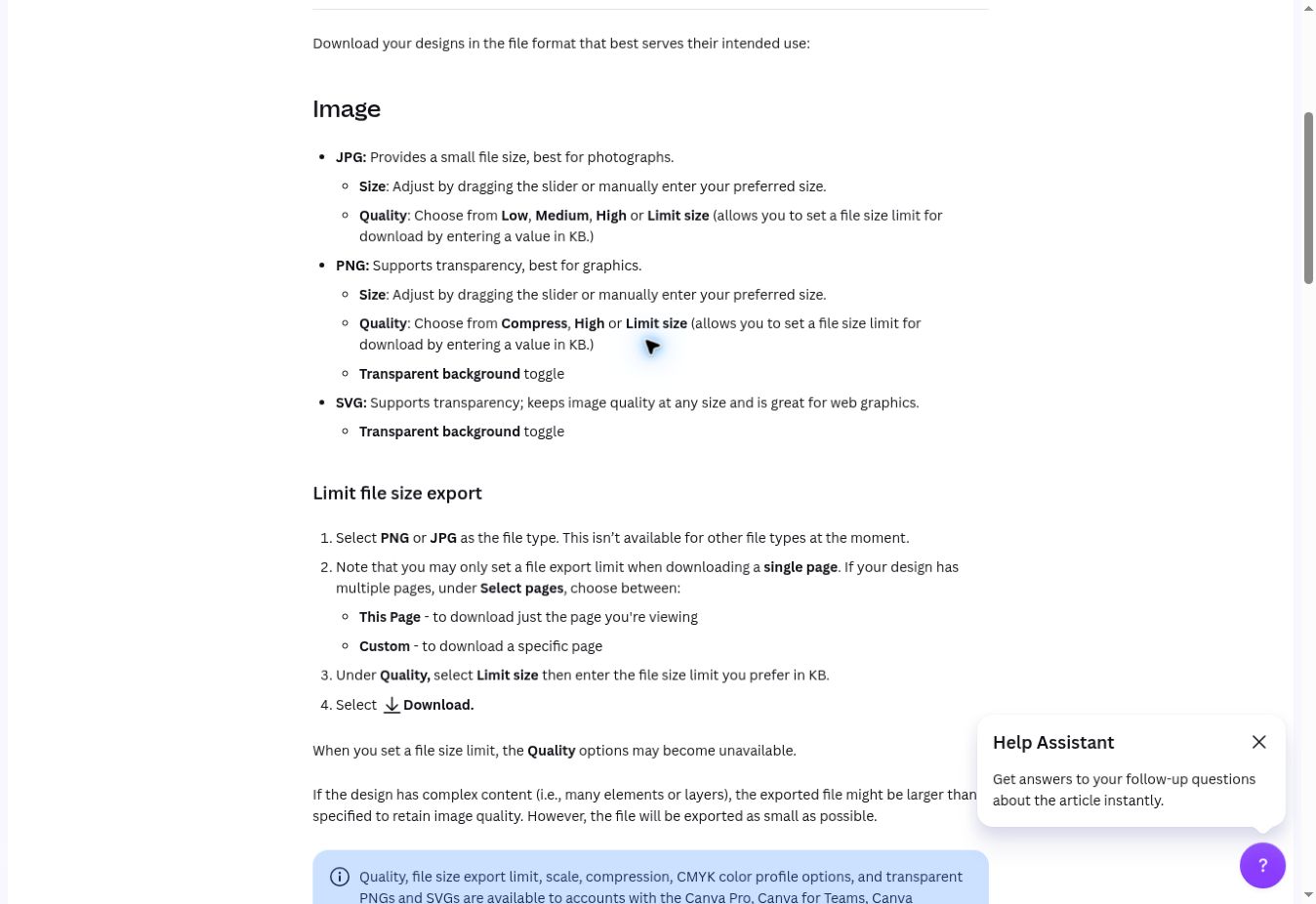
Size, quality, and compression controls
Think of these as three different questions:
| Control | Question it helps answer | What to watch |
|---|---|---|
| Size or scale | Does the exported image meet the required pixel dimensions? | A larger export cannot restore detail missing from the source image. |
| Quality | How much image detail should the file retain? | Compare the result at its intended viewing size. |
| Compression or file-size limit | Can the file fit the delivery limit? | Smaller files can lose image quality; verify both size and appearance. |
Canva’s file-type documentation lists a size slider or entered value, JPG quality choices, and PNG compression and limit-size options. Enhanced controls—including quality, scale, compression, and export limits—require an eligible plan. Availability can differ by format and plan, so use the controls actually shown in your download panel.
The Limit size option has a specific limitation: Canva says it works only for a single PNG or JPG page, and complex designs may still exceed the requested limit. Treat it as a target and check the downloaded file’s properties.
Basic PNG, JPG, and PDF exports are included in Canva Free, according to Canva’s current plan comparison. An advanced export option being restricted does not mean every download requires an upgrade. Our Canva Free vs Pro comparison explains the broader plan decision.
Canva PDF Standard vs PDF Print
PDF Standard: documents for screen reading
Start with PDF Standard for a multipage handout, report, or document that will be read on a device. Canva describes PDF Standard as 96 dpi in its download reference.
Select only the intended pages, download the file, and check small text, image clarity, page order, and any links you expect recipients to use. If you enable PDF compression on an eligible plan, inspect the result again: Canva warns that compression can lower image quality.
PDF Print: files for a print provider
Start with PDF Print when a provider will print and trim your design. Canva describes it as 300 dpi and offers print-related settings such as crop marks, bleed, and RGB or CMYK color profiles.
That format description does not guarantee that every image placed in the document contains enough detail for its printed size. A low-detail photo remains a problem even in a PDF Print export.
Ask the provider for its required page size, bleed, crop marks, and color profile before downloading. Those instructions should drive your settings.
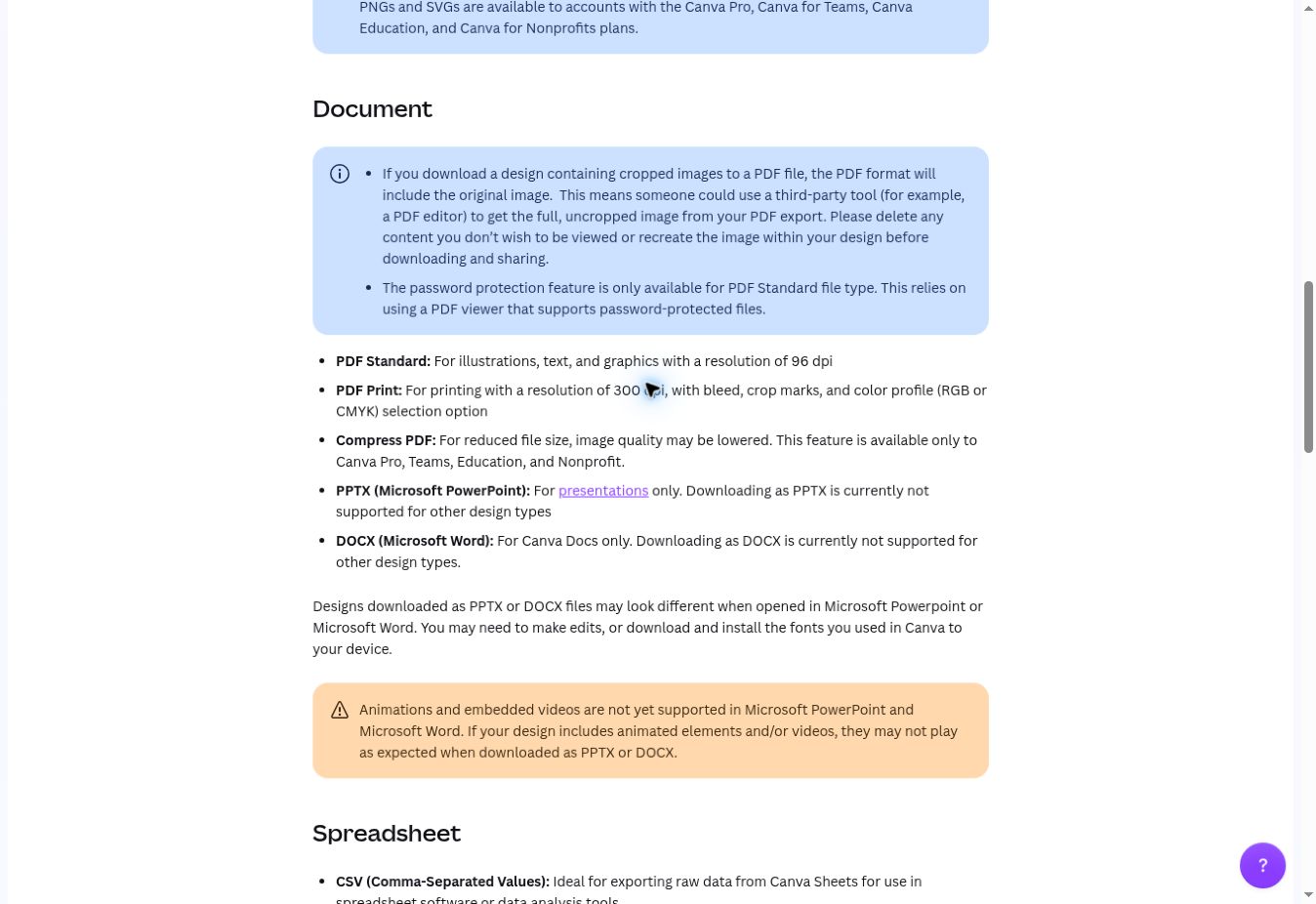
Print settings: bleed, crop marks, and color
Set up the design before enabling crop marks
Bleed extends a background beyond the trimmed edge to help prevent unwanted white borders. Keep important text and logos inside the safe margins, and extend backgrounds into the bleed area.
Canva’s print-layout guidance describes showing print bleed under File → Settings, sometimes through Rulers and guides. Its bleed, margin, and crop-mark sizes are fixed; check whether they meet your provider’s requirements.
To include crop marks and bleed in the export, select Share → Download → PDF Print → Crop marks and bleed. The crop marks appear in the exported PDF, rather than in the editor. Enable them when the provider asks for them.
Use the color profile the printer requests
RGB is based on light and is suited to screens. CMYK is based on inks and has a narrower color range. Canva’s print-color documentation explains that bright colors can become more muted during conversion.
Canva’s editor uses HEX/RGB colors, while CMYK is a plan-restricted export option. Choose the profile requested by the print provider; CMYK is not a requirement for every printing workflow. Review a proof or test print before a larger run because the printed material also affects appearance.
Flatten PDF and cropped-image privacy
What Flatten PDF does
Canva says Flatten PDF merges the design’s layers into a single static image to help preserve the appearance of fonts and elements. It can increase file size, so it is not a compression setting.
The documented path is Share → Download → PDF → Advanced Settings → Flatten PDF. Consider it when a print provider requests a flattened file or you need to investigate an appearance problem. Compare the exported result before sending it. If your document has requirements such as selectable text, working links, or accessibility, check those requirements in the finished PDF too.
Flattening should not be treated as encryption, secure redaction, or a guarantee against copying.
Cropping does not remove sensitive image content from a PDF
Canva explicitly warns that PDF exports retain original uncropped images. If you crop a photograph to hide sensitive information, that information may remain in the exported file.
Remove or recreate sensitive image content before adding it to the design and sharing the PDF. Do not rely on cropping—or assume that flattening resolves this issue.
Example: three exports for one small business
Imagine a small business has created a photo promotion, a customer handout, and a flyer:
| Deliverable | Starting export choice | Final check |
|---|---|---|
| Photo promotion for its website | JPG | Confirm required pixel dimensions, acceptable file size, and readable offer text. |
| Multipage customer handout sent by email | PDF Standard | Check page selection, image clarity, page order, and any links. |
| Flyer sent to a local printer | PDF Print | Match the printer’s size, bleed, marks, and color-profile instructions; review a proof. |
This is a hypothetical workflow, not a performance test. The useful habit is to make a separate export decision for each destination, even when the designs share the same branding.
Frequently asked questions
Is PNG always better than JPG in Canva?
No. PNG is a useful choice for graphics and supports transparency. JPG is a useful choice for photos when a smaller file is important. Compare the exported result against the destination’s requirements.
Can I download a transparent background with Canva Free?
Canva’s current Help documentation lists transparent-background exports for Pro, Teams, Business, Education, and Nonprofits, rather than Free. Choose PNG and enable Transparent background on an eligible plan; PNG alone does not activate it.
Should I use PDF Standard or PDF Print?
Start with PDF Standard for screen reading and PDF Print for a print provider. For print work, confirm the provider’s specifications before selecting bleed, crop marks, or a color profile.
Why does Canva’s file-size limit not match my download?
Canva says the limit-size control is available only for a single PNG or JPG page and that complex designs may exceed the limit. Check the actual file size after downloading.
How do I download only selected pages?
In Share → Download, use the page selector to choose This Page or Custom, then select the pages you want before downloading.
Should I always flatten a Canva PDF?
No. Flattening combines layers to help preserve appearance and may increase file size. Use it when the recipient’s requirements or an appearance issue call for it, and inspect the resulting file.
For a broader assessment of the tool, read our Canva review. To create or export your next design, Visit Canva Website.
Published and verified October 5, 2026 · Our editorial policy