CANVA FREE TROUBLESHOOTING
How to Avoid Paid Elements in Canva Free
You finish a Canva design, select Download, and encounter a payment prompt. Before changing plans, check what triggered it: the design may contain a premium asset, or you may have selected an export option that requires an eligible plan.
This guide explains how to avoid paid elements in Canva Free, replace them in an existing design, and find premium content hidden behind other objects. It follows official Canva documentation checked on October 3, 2026. We have not performed a signed-in editor test; the makeover example below is illustrative.
Quick Answer
In Canva’s documented Elements search workflow, select Show filters → Price → Free → Apply. Check for crown badges on paid elements. If your design already contains premium content, remove it and add a free or owned replacement. For hidden assets, Canva documents Position → Layers as the inspection route. Finally, download with supported standard settings rather than selecting a paid export feature.
The aim is a design made from content you can legitimately use—not removing watermarks from unlicensed premium assets.
Why Does Canva Ask Me to Pay?
A payment or upgrade prompt can have different causes. Diagnose the message before altering your design.
| What you encounter | Possible cause | What to check |
|---|---|---|
| Payment prompt involving content | A premium photo, illustration, or other asset | Inspect your design and replace the paid item |
| Crown badge or criss-cross watermark | Premium Canva content | Choose a suitable free or owned alternative |
| Upgrade request for an export setting | A plan-limited download feature | Return to supported standard download options |
| Failed upload, “Fix issue,” or download error | A technical issue rather than a content charge | Follow Canva’s troubleshooting guidance |
Canva’s download help distinguishes premium-content payments from restrictions on download options. Its download troubleshooting guide also covers technical problems such as incomplete uploads and connection issues. An unsuccessful download alone does not establish that your design contains paid content.
1. Use the Canva Free Elements Filter
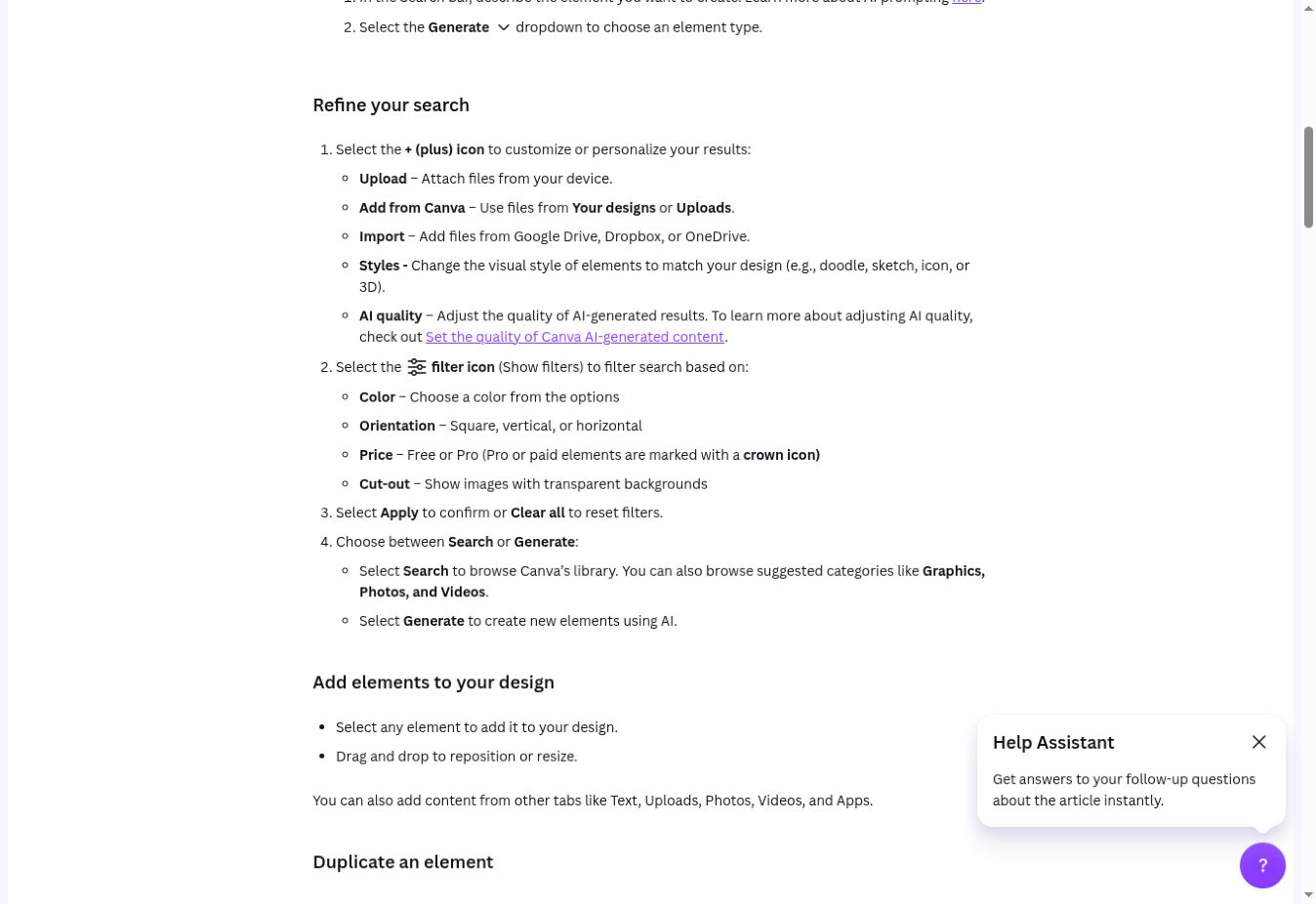
For library elements, Canva’s official element-search instructions document this sequence:
- Open Elements in the editor’s side panel.
- Search for the type of item you need, such as a leaf illustration or a background photo.
- Select Show filters.
- Under Price, select Free.
- Select Apply, then inspect the results before adding an item.
Canva documents a crown badge for Pro or paid elements. Look for it when choosing assets.
The documented price filter applies to element searches. Do not assume every template gallery, app, font picker, or music category uses the same controls. If the filter is absent in your interface, inspect the item’s badge and download prompt, or use an image you own instead. This guide does not claim every account displays an identical interface.
Check the whole template, not just one item
A template is a starting layout containing separate components. Check its photos, illustrations, and other content before treating the finished design as free to download. A free element inside a design does not establish that every other component is free.
This matters particularly when you reuse a shared design or change only the headline in an existing template: the remaining content may still include premium assets.
2. Replace Visible Paid Elements
If a photo or decorative graphic is clearly premium, replace it with something that serves the same purpose.
Canva’s element guidance documents selecting an object and deleting it through the toolbar or keyboard. It also explains adding, moving, and resizing another element. This is a manual replacement workflow, not a promise of one-click substitution across every design.
A practical sequence is:
- Identify the paid item and note its role in the layout.
- Select and delete it.
- Search for a suitable alternative using the Free filter.
- Add the replacement, then adjust its size and position.
- Check whether the layout still communicates the intended message.
You can also use Uploads → Upload files to add an authorized photo or graphic you already own, as documented in Canva’s element help. Rights to uploaded files remain your responsibility; a picture found through an internet search is not automatically free to use.
3. Find Hidden Pro Elements with Position and Layers
An obvious premium photo is relatively easy to spot. A small graphic behind a background or another object can be harder to find.
Canva’s premium-element troubleshooting instructions describe this route:
- Select an element in the design.
- Open Position from the top menu.
- Open Layers.
- Inspect the layers for the premium item.
- Bring the offending layer to the top if needed, then delete it using the trash control.
- Add a suitable replacement if that part of the design is still needed.
Inspect every page you intend to export. Selecting only one page for download changes the export selection; it does not remove premium content from the other pages in your Canva file.
If the payment prompt persists, repeat the audit rather than assuming the first removed item was the only premium asset.
4. Check Export Settings Separately
For a fuller explanation of formats and plan-limited controls, read our Canva export settings guide.
A design with free or owned assets can still encounter an upgrade prompt if you select a plan-limited download feature.
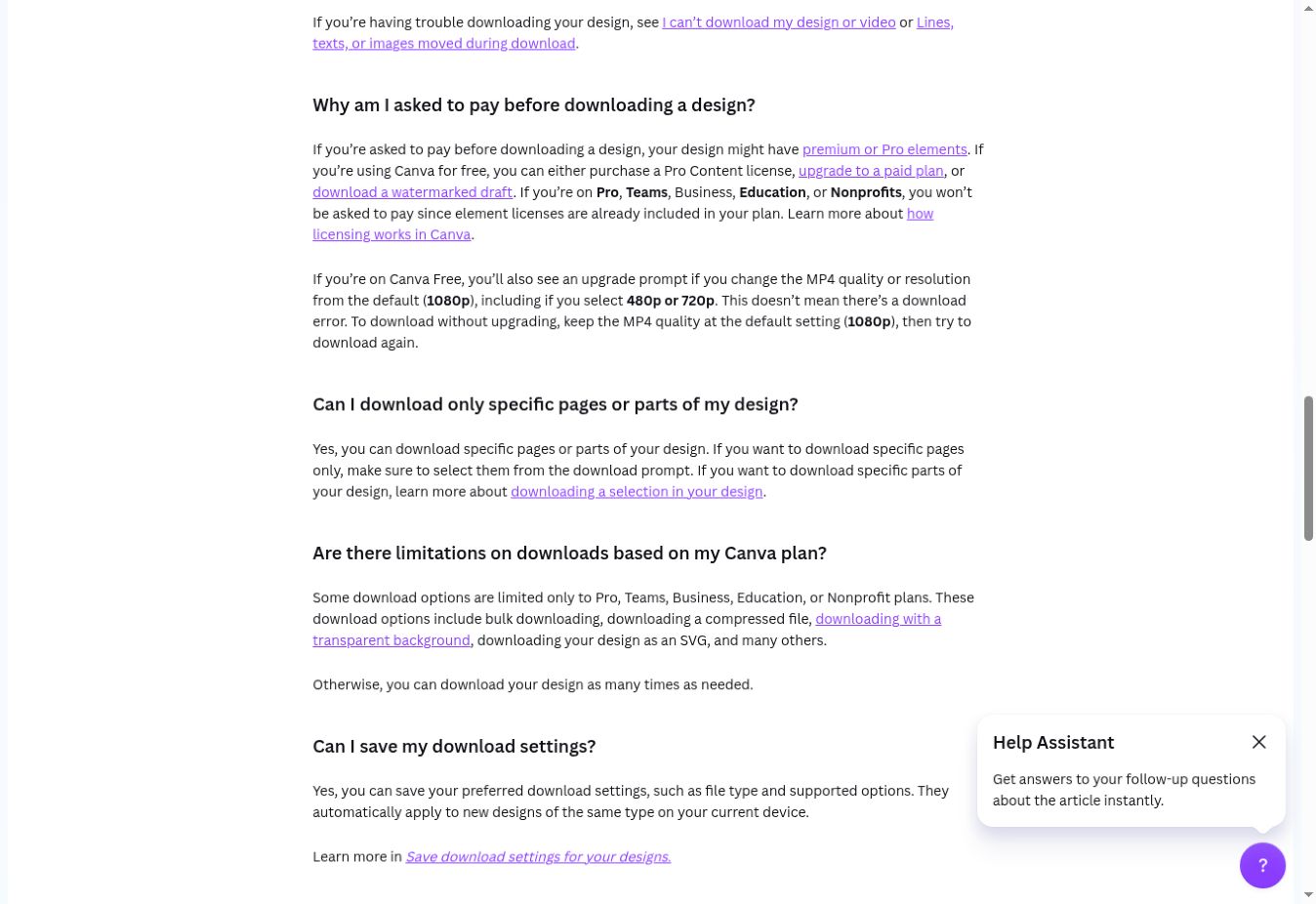
Canva’s download documentation identifies restrictions involving options such as transparent backgrounds, compression, SVG, and bulk downloading. Availability depends on the feature and account plan.
For a straightforward static image:
- Select Share → Download.
- Choose an appropriate supported format, such as PNG or JPG.
- Select the intended pages if the file contains several.
- Use standard settings available to your account.
- Select Download and inspect the result.
Do not enable an advanced control simply because another tutorial recommends it. Canva’s file-type help explains formats and plan-limited controls.
For video, separate rules can apply: Canva’s download help notes that changing the default MP4 resolution can trigger an upgrade prompt. Keep that issue separate from the search for paid image elements.
Illustrative Makeover: Keep the Message, Replace the Assets
Suppose a social post contains a premium stock photograph, a premium decorative graphic, and a short headline. The following is a hypothetical replacement plan, not a completed editor experiment.
| Design component | Replacement approach | What to review afterward |
|---|---|---|
| Premium stock photograph | Upload a relevant photo you own or are authorized to use | Crop, placement, and contrast with text |
| Premium decorative illustration | Search Elements with the Free price filter | Whether the new style fits the design |
| Hidden premium background decoration | Locate it through Position and Layers, then remove or replace it | Empty space and readability |
| Plan-limited export setting | Return to a supported standard export option | Whether the output meets your actual need |
The goal is to preserve the useful parts of the layout while substituting content you can use. A free replacement may look different; it is not necessarily an exact equivalent of the premium item.
What “Free” Means for Usage Rights
Free Canva content is available without a content charge, but that does not mean unrestricted ownership or permission for every use.
Canva’s licensing explanation describes permitted design uses and restrictions, including rules concerning resale of stock content and trademark use. Popular Music has separate rules. Check the license relevant to your project instead of assuming that the Free label covers every commercial use.
This guide concerns identifying and replacing content; it does not provide a blanket legal guarantee for selling a design, logo, template, or stock asset. Keep uploaded material authorized and avoid unnecessary sensitive files; Canva’s privacy policy explains its handling of submitted content and sharing.
When This Workflow Is Useful—and Its Limits
In our editorial judgment, this approach suits occasional social posts, teaching graphics, and simple business visuals where free or owned assets meet the requirement.
Its main benefit is avoiding payment for premium assets you can replace. Its limitations are practical: substitutes can change the appearance, complex multipage files need inspection, and paid-only features remain subject to their plan requirements.
No trial is needed merely to follow this replacement workflow. If you independently consider a paid subscription, consult Canva’s current plans and subscription terms before purchasing. Check renewal, cancellation, and refund conditions rather than assuming a trial or refund is universally available.
For broader plan advice, read our Canva review and Canva Free vs Pro comparison. To apply a simple image workflow, follow how to create Pinterest Pins in Canva.
Final Checklist Before Downloading
- Inspect the elements, images, and other content on every selected page.
- Replace unwanted paid assets with suitable free or authorized alternatives.
- Check hidden layers if the payment prompt remains unexplained.
- Review export settings for plan-limited options.
- Confirm you are exporting the correct pages.
- Open the downloaded file and check for unintended watermarks or layout changes.
- If the error is technical, use the relevant troubleshooting steps rather than continuing to delete content.
Frequently Asked Questions
How do I find free elements in Canva?
Canva’s documented route is Elements → Show filters → Price → Free → Apply. Inspect each result and its badge. Other content categories may use different controls.
How do I find hidden Pro elements in Canva?
Select an element, open Position → Layers, and inspect the layers. Canva documents bringing the premium item to the top and deleting it when necessary.
Why does Canva ask me to pay after I remove a premium photo?
Another premium item may remain, including on another selected page or hidden layer. Alternatively, the prompt may concern an export feature. Read the message and check those possibilities separately.
Can I remove the watermark from a paid Canva element for free?
For a no-spend design, remove or replace the premium element itself. Canva’s premium-content guidance describes legitimate licensing and subscription routes for using premium content. Do not erase its watermark or use a capture as a licensing workaround.
Does buying one element make it available for every future design?
Do not assume that. Canva’s licensing explanation describes a one-off Pro content license in relation to a design, rather than unrestricted ongoing access across all designs.
What is the best way to avoid paid Canva elements?
For this task, prevention is the most practical approach: use the documented Free filter, check asset badges as you add items, and audit the design before export. This is workflow advice, not a tested performance ranking.
Published October 3, 2026 · Updated October 5, 2026 · Our editorial policy