CANVA PINTEREST TUTORIAL
How to Create Pinterest Pins in Canva
Learning how to create Pinterest pins in Canva starts with a simple decision: what should someone understand from your image, and where should the Pin take them? A clear headline, a relevant visual, and a useful destination are a practical foundation for a recipe, tutorial, or small-business resource.
This Canva Pinterest tutorial explains the documented steps for preparing a static image and uploading it as an organic Pin. It uses official Canva and Pinterest guidance checked on October 3, 2026. The design example is hypothetical; we have not tested these steps inside a signed-in editor or published a test Pin.
Quick Answer
Start with a Canva Pinterest Pin template or blank design, using 1000 × 1500 pixels, a 2:3 aspect ratio. Customize the image and headline, then select Share → Download, choose PNG or JPG, and download the correct page. In Pinterest, create an image Pin, upload the file, add a relevant title and description, choose a board, and add a destination link when appropriate. Check the image and destination before selecting Publish.
Pinterest’s creator guidance recommends that image size and aspect ratio. The advice here concerns ordinary image Pins; advertising specifications should not be treated as universal organic-upload limits.
What You Need Before Starting
- A Canva account and a Pinterest account.
- One clear topic for the Pin.
- An image you own or are authorized to use.
- A destination page if the Pin will link to a website.
You can build a straightforward design with free or owned assets. Check the specific template and elements you choose: a gallery containing free templates does not mean that every item is included in Canva Free.
1. Start with a Pinterest Pin Design in Canva
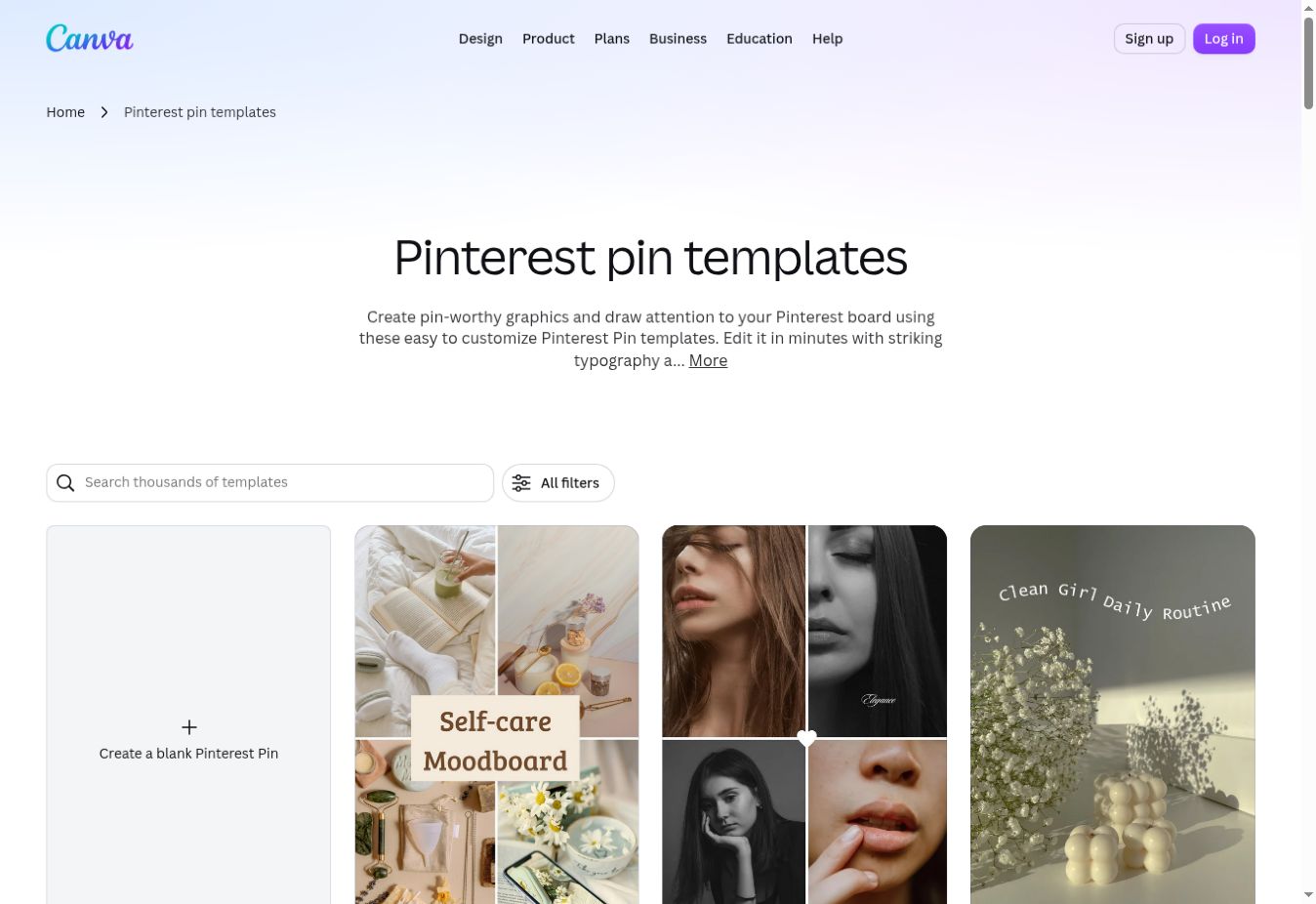
Open Canva’s Pinterest Pin template gallery. The official gallery includes customizable templates and a Create a blank Pinterest Pin option.
Choose a template that suits your content, or start blank if you want a simpler layout. Check that your design uses the recommended 1000 × 1500-pixel format. Canva also lists this Pinterest size in its official image-sizing guide.
For a beginner, starting with the right format is easier than redesigning a square image afterward. Canva’s resizing feature has plan eligibility requirements, so this tutorial does not depend on Magic Resize.
2. Make the Message Easy to Understand
Replace the sample text with a headline that accurately describes your content. If your page is a website launch checklist, the Pin should promise that checklist rather than a broader guide you do not provide.
Our editorial design suggestions are:
- Use one main headline and one dominant visual.
- Choose text and background colors with clear contrast.
- Leave space around the headline instead of filling every corner.
- Keep a website name or logo secondary to the main message.
- Review the design at a smaller scale to assess readability.
These are practical layout recommendations, not claims that a particular font, color, or design guarantees clicks.
3. Check Images and Paid Elements
Use your own image or an asset whose usage rights fit your project. Before exporting, check whether the design contains premium Canva content.
According to Canva’s download guidance, premium content can trigger payment options or allow a watermarked draft. For a free workflow, replace paid elements with suitable free or owned assets. A payment prompt does not mean every Canva download requires a subscription.
Avoid uploading sensitive personal material simply to experiment. Canva’s privacy policy covers uploaded content, and publishing to Pinterest introduces another service’s privacy settings. Use an authorized, non-sensitive example image.
4. Choose PNG or JPG and Download
For a fuller explanation of formats and plan-limited controls, read our Canva export settings guide.
Canva documents this export sequence:
- Select Share.
- Select Download.
- Choose a file type.
- Select the pages to download if your design has several pages.
- Select Download.
PNG vs JPG for Pinterest
| Format | Useful starting choice | What to check |
|---|---|---|
| PNG | Designs dominated by headlines, shapes, and graphics | Text clarity and the resulting file size |
| JPG | Photo-focused designs where a smaller file is useful | Whether compression visibly affects the image or text |
Canva’s file-type guide describes JPG as suitable for photographs and PNG as suitable for graphics. There is no single best format for every Pinterest Pin: choose based on your design and inspect the downloaded file.
For this basic workflow, use the normal image export options available to your account. Controls such as transparent background, compression, and other advanced download settings can depend on your plan. You do not need to enable them to follow this tutorial.
Download the intended page, open the exported image, and check for watermarks, missing text, or the wrong layout before uploading.
5. Upload the Image to Pinterest
Pinterest’s official desktop instructions describe creating a Pin, selecting or dragging in an image, filling in the relevant details, and publishing. Business accounts may reach Create Pin through their business menu.
Prepare these details:
| Field | What to enter |
|---|---|
| Title | A clear description of the content and its main benefit |
| Description | A useful explanation of what the viewer will find |
| Link | The relevant destination page, if applicable |
| Board | A board that matches the topic |
| Related topics | Relevant selections if this option is available |
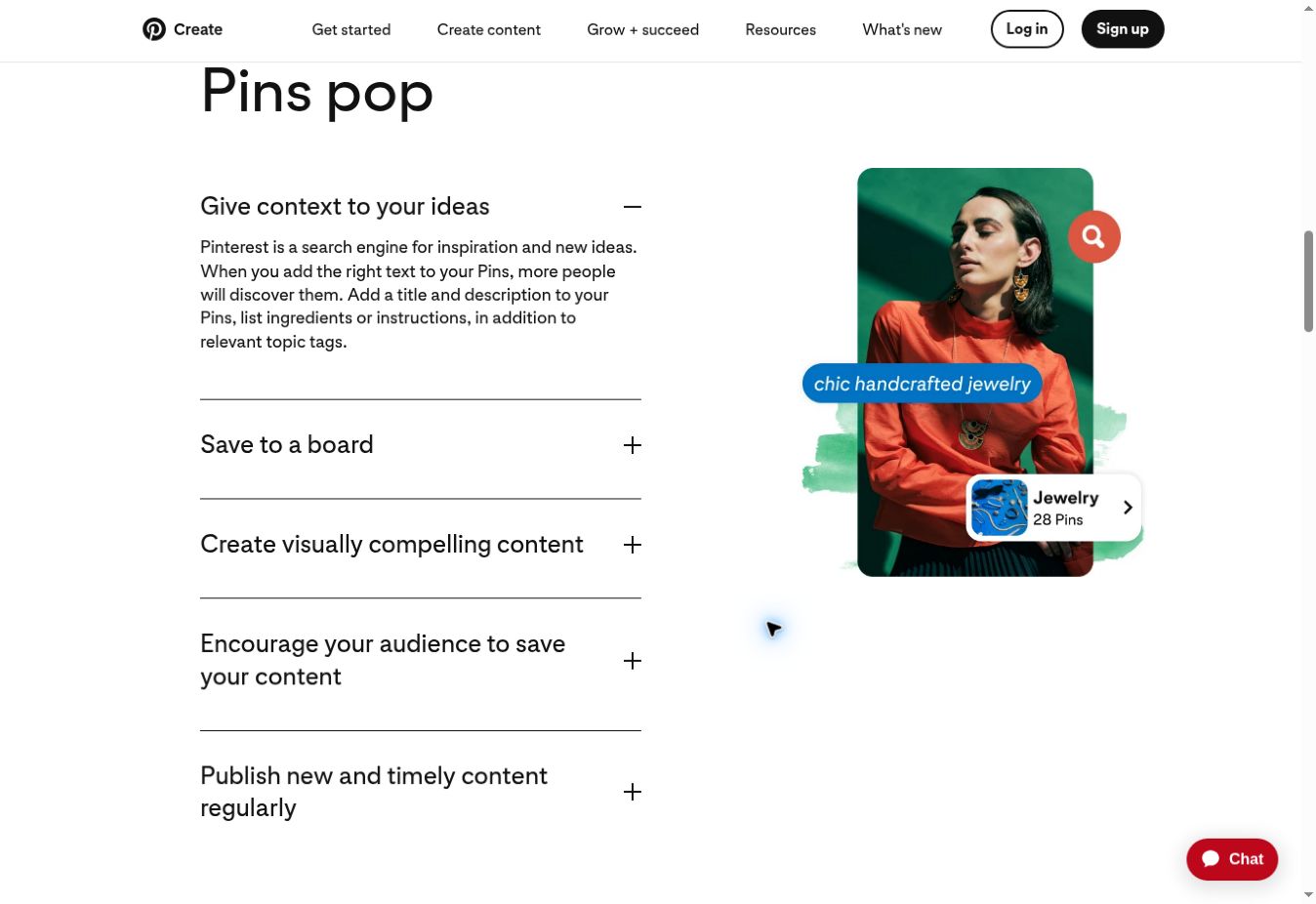
Pinterest recommends relevant titles, descriptions, topics, and related boards in its creator guidance. Include topic words naturally; do not repeat the same keyword simply to increase its frequency.
The destination link belongs in Pinterest’s Link field. A web address printed inside a PNG or JPG is part of the image; it does not become a clickable link by itself.
Prepare descriptive alt text as well. If an alt-text field is available in your publishing interface, use it to describe the image for accessibility. Its location and availability were not verified in a signed-in session for this guide. Do not substitute an SEO keyword list for a meaningful image description.
If your image uses AI modification, review Pinterest’s Mark as AI-Modified option and apply it as appropriate. This option appears in the official upload documentation.
Worked Example: A Small-Business Website Checklist
The following is a hypothetical design brief, not an exported or tested Canva project.
| Item | Example |
|---|---|
| Canvas | 1000 × 1500 pixels |
| Headline on the image | Website Launch Checklist for Beginners |
| Supporting text | Check your pages, links, and mobile layout |
| Visual | An owned photograph of a laptop and a checklist |
| Export starting choice | PNG, because the layout emphasizes text and graphics |
| Pinterest title | Website Launch Checklist for Beginners |
| Pinterest description | Preparing your first business website? Use this checklist to review essential pages, navigation, mobile layout, and links before launch. |
| Board | Small Business Website Tips |
| Destination | The actual checklist article, rather than an unrelated homepage |
| Suggested alt text | Vertical graphic with a laptop photo and the headline “Website Launch Checklist for Beginners.” |
Replace every detail with information that accurately matches your own image and destination. Add the destination only when the page exists and works.
Canva Free for Pinterest: What to Watch
If a payment prompt interrupts your download, follow our guide to finding and replacing paid elements in Canva Free.
The main restriction for this workflow is your selection of content and export options, not the need to create a complicated design.
| Situation | Practical response |
|---|---|
| Your template includes premium content | Replace those elements with free or owned alternatives |
| Canva offers a watermarked draft | Review the design and remove premium content before using a free export workflow |
| An advanced download control is unavailable | Use the standard PNG or JPG options available to your account |
| You need to adapt another design size | Check resize eligibility, or start a new design in the correct Pinterest format |
Canva’s resize documentation lists eligible plans for Magic Resize. It is not a necessary step when you begin with a Pinterest Pin design.
This tutorial does not recommend starting a paid trial. If you later consider an upgrade, check Canva’s current plans and subscription terms for your account and location, including renewal, cancellation, and refund conditions. Prices and eligibility should be checked at the time of purchase.
For more context, read our Canva review and Canva Free vs Pro comparison.
Common Mistakes to Avoid
- Choosing a layout before defining the topic. Decide what the Pin communicates first.
- Using text that is hard to read at a small scale. Simplify the message and check the exported image.
- Leaving premium elements in a free workflow. Inspect the design before downloading.
- Exporting the wrong page. Select the correct page when your Canva file contains several designs.
- Promising content the destination does not provide. Keep the headline, description, and linked page aligned.
- Putting the URL only inside the image. Add the actual destination to Pinterest’s Link field.
- Copying advertising limits into an organic tutorial. Use documentation relevant to the publishing task.
Before You Publish
Confirm that the image is readable, the topic is clear, and no unintended watermark remains. Check that the title and description match the destination, the board is relevant, and the link opens the correct page. If you can add alt text, describe what is actually visible.
Then publish using Pinterest’s documented workflow. Observe your own results over time; this guide does not promise reach, clicks, or rankings.
Frequently Asked Questions
What is the recommended Pinterest pin size in Canva?
Use 1000 × 1500 pixels, a 2:3 aspect ratio, as the starting format for a static image Pin. Pinterest’s creator documentation recommends it, and Canva’s size guide lists the same dimensions.
Can I create Pinterest pins with Canva Free?
Plan a design using free or owned assets, and check the specific template and elements you select. Premium content and some export controls can require payment or an eligible plan. Replace paid assets if you want to keep the workflow free.
Is PNG or JPG better for Pinterest pins?
Start with PNG for graphics and prominent text, or JPG for a photo-focused image where file size matters. Inspect the export before uploading rather than assuming one format always wins.
Can a Canva image link directly to my website?
The exported image does not carry a clickable website link. Enter your destination in Pinterest’s Link field when creating the Pin.
Do I need Canva Pro to resize a Pinterest pin?
Canva’s resize feature has eligible-plan requirements. You can avoid relying on it for this task by starting with a Pinterest Pin design in the recommended format.
Published October 3, 2026 · Updated October 5, 2026 · Our editorial policy