CANVA DESIGN TUTORIAL
How to Create YouTube Thumbnails in Canva
A useful YouTube thumbnail tells viewers what your video offers before they read every word of the title. You do not need a complicated layout: a relevant image, a readable headline, and a design that accurately represents the video are a practical starting point.
This guide explains how to create YouTube thumbnails in Canva, download the image, and upload it through YouTube Studio. It follows official Canva and YouTube documentation checked on October 3, 2026. We have not tested a signed-in editor or channel upload; the worked example is hypothetical.
Quick Answer
Create a new 3840 × 2160-pixel Canva design for a regular video thumbnail, following YouTube’s current 16:9 recommendation. Add an authorized image and a clear headline, check that your assets are free or properly licensed, then select Share → Download and export a JPG or PNG. Check the actual file size: YouTube lists 50 MB for desktop uploads and 2 MB for mobile video-thumbnail uploads. With a verified account, open the video in YouTube Studio, select Upload file in its Thumbnail section, and save.
What You Need
- A Canva account.
- A YouTube account with custom-thumbnail access unlocked through verification.
- A video to which you can add the thumbnail.
- A relevant image or video snapshot you are authorized to use.
- A short, accurate message for the design.
YouTube’s channel verification documentation says phone verification unlocks custom thumbnails. This is separate from a public verification checkmark or joining the YouTube Partner Program.
1. Use YouTube’s Current Thumbnail Requirements
Follow the platform’s requirements when guidance differs between tools. At the time of our research, Canva’s thumbnail-maker FAQ still listed older dimensions, while YouTube’s own help recommended the following:
| Requirement | Regular video thumbnail |
|---|---|
| Recommended resolution | 3840 × 2160 pixels |
| Recommended aspect ratio | 16:9 |
| Minimum image width | 640 pixels |
| Image formats | JPG or PNG |
| Desktop upload limit | 50 MB |
| Mobile video-thumbnail upload limit | 2 MB |
Source: YouTube’s official custom-thumbnail guidance, checked October 3, 2026.
The recommended resolution is a design starting point; it does not mean every smaller image necessarily fails. Upload limits are device-specific, so do not treat the mobile limit as the universal limit for a desktop workflow.
2. Start a New Custom-Size Canva Design
Canva’s guide to designing from scratch documents starting a design by choosing a design type or searching for custom size on the homepage. It also describes pixel units.
For this tutorial:
- Start a new design using custom dimensions.
- Set the units to pixels.
- Enter 3840 for width and 2160 for height.
- Create the new canvas.
Exact button placement can differ from the public documentation; follow the prompts in your account. This route starts at the intended dimensions and does not depend on resizing an existing design with a paid feature.
Can I use a Canva YouTube thumbnail template?
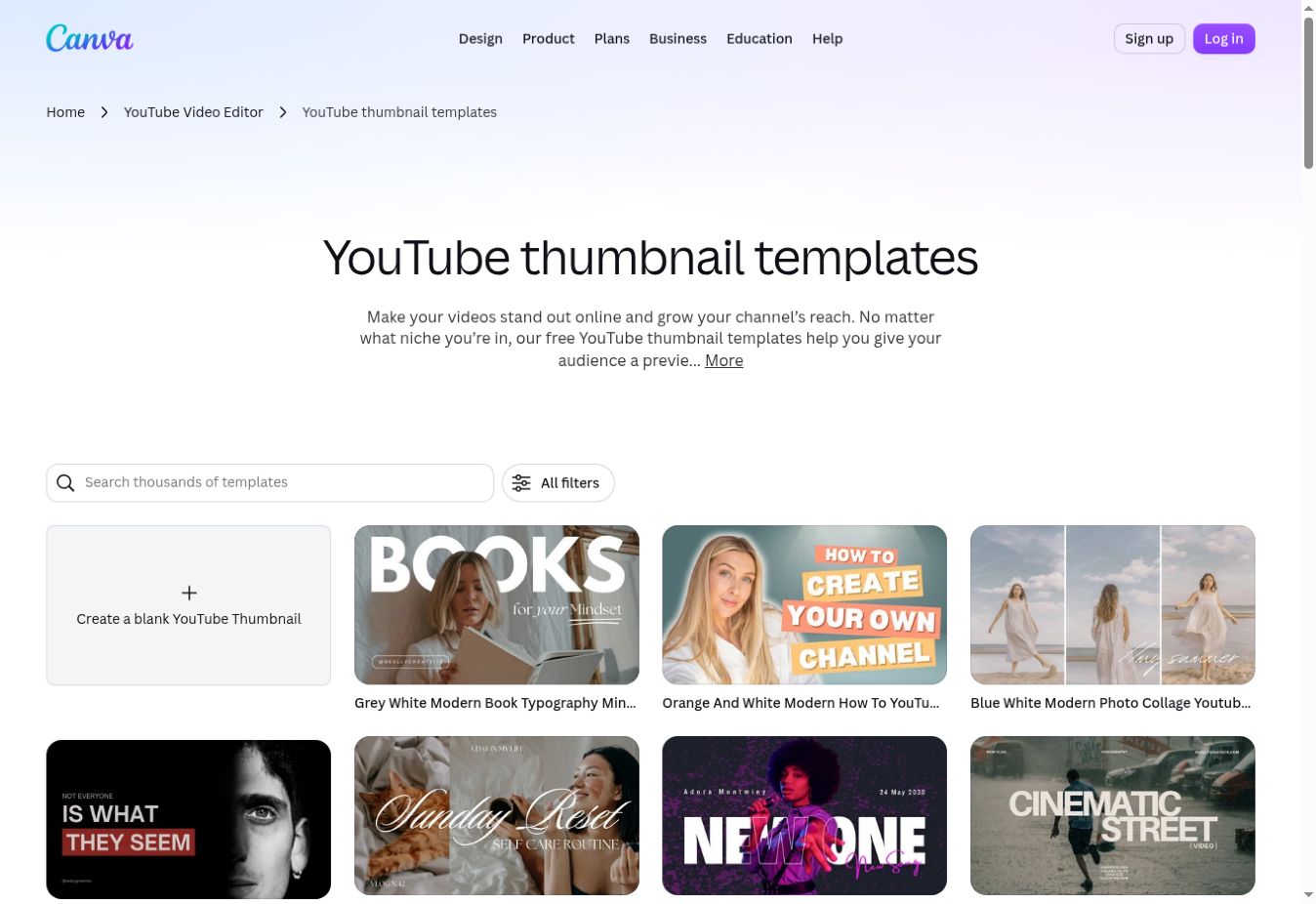
Yes, templates can provide a useful layout starting point. Canva’s official thumbnail gallery includes example designs and a blank thumbnail option.
However, check the actual dimensions before using a preset. We have not verified that every gallery preset uses YouTube’s current recommended resolution. If a preset uses different dimensions and you want the current recommendation, begin with the new custom-size canvas instead. Also inspect template assets: not every item in a gallery is necessarily included in Canva Free.
3. Add an Image That Matches the Video
Use a frame from your own video, an authorized photograph, or another visual that clearly illustrates the subject. For a tutorial, a relevant screenshot can communicate the task; for a product demonstration, the actual product may be more helpful than unrelated stock imagery.
Canva’s element and upload instructions document Uploads → Upload files, followed by adding the uploaded item to the design.
Avoid unnecessary personal information in screenshots. Check for email addresses, account details, private messages, or customer data before uploading. Canva’s privacy policy describes handling submitted content, and sharing a design can change who sees it.
4. Write a Readable Headline and Simplify the Layout
Your image headline does not need to repeat the entire video title. Choose words that help someone recognize the subject quickly, while accurately reflecting what the video delivers.
YouTube’s thumbnail and title guidance recommends readable fonts and avoiding overly complex designs. Apply that advice by:
- Giving the main subject enough space.
- Using a headline that remains legible at a smaller scale.
- Choosing clear contrast between text and background.
- Removing decorations that compete with the message.
- Checking the image as a small preview before exporting.
These choices support clarity; they do not guarantee clicks or views. A misleading promise may get attention, but it fails to explain the actual video accurately.
Hypothetical example: “Build Your First Website”
Suppose your video walks beginners through building their first business website. This is an illustrative design brief, not a completed Canva project or performance test.
| Design component | Example choice |
|---|---|
| Canvas | 3840 × 2160 pixels |
| Main image | An authorized screenshot of the finished website |
| Headline | Build Your First Website |
| Supporting detail | A small “Beginner Tutorial” label, if it remains readable |
| Layout | One main screenshot with space for the headline |
| Starting export choice | PNG for a screenshot and text-heavy design |
Do not add pricing, completion-time, or revenue promises unless the video actually supports them. Replace the example with details that match your own content.
5. Check Canva Free Assets Before Export
Canva’s Elements documentation describes Show filters → Price → Free → Apply, and a crown badge for paid elements. Use the documented filter when searching library assets, and check anything already included in your design.
A straightforward thumbnail can use your own snapshot plus suitable free assets. Premium elements and advanced controls can still require payment or an eligible plan. Do not assume a template is entirely free just because one component is free.
If you encounter a premium-content prompt, our guide to avoiding paid elements in Canva Free explains visible and hidden asset checks. For broader tool suitability and limitations, see our Canva review.
Free content still has licensing conditions. Consult Canva’s licensing explanation when your project raises questions about permitted use. This tutorial does not recommend a trial or require a subscription.
6. Download a JPG or PNG
For a fuller explanation of formats and plan-limited controls, read our Canva export settings guide.
Canva’s official download instructions document this sequence:
- Select Share.
- Select Download.
- Choose the file type.
- Select the appropriate page if your design has several.
- Select Download.
Use standard download options available to your account. The canvas was created at the intended dimensions, so this workflow does not require a paid export-size slider.
JPG vs PNG for YouTube thumbnails
| Format | Practical starting choice | Inspect before upload |
|---|---|---|
| JPG | Photo-focused thumbnails where a smaller file is useful | Compression effects on faces, fine details, and text |
| PNG | Graphics, screenshots, and prominent text | File size and image clarity |
Canva’s file-type documentation describes JPG as suitable for photographs and PNG as suitable for graphics. The best format for your thumbnail depends on the design and the upload route; neither is universally superior.
Open the exported file and check its dimensions, actual file size, text, and any unintended watermark. A JPG may be smaller, but its size is not guaranteed to meet the mobile limit. If your file exceeds that limit, consider the desktop upload route when the file meets its documented requirements. Do not assume every compression or quality control is available on Canva Free.
7. Upload and Save in YouTube Studio
With custom-thumbnail access enabled, follow YouTube’s official desktop workflow:
- Sign in to YouTube Studio.
- Open Content.
- Select the video and open its details.
- In the Thumbnail section, select Upload file.
- Choose your exported image.
- Select Save.
Verify that you selected the correct video and image before saving. YouTube notes that thumbnail changes may take time to appear, so an immediate old preview does not necessarily mean the save failed.
If the Thumbnail Upload Does Not Work
| Problem | What to check |
|---|---|
| Custom upload is unavailable | Check your channel’s phone-verification eligibility and feature access |
| File is rejected | Confirm JPG/PNG format, dimensions, and the limit for your upload device |
| YouTube reports a daily limit | YouTube says limits vary; its guidance is to retry after 24 hours |
| The old thumbnail remains visible | Allow for propagation time and check that you saved the change |
| A vertical video looks different on some surfaces | YouTube documents surface-specific handling of vertical thumbnails |
YouTube’s feature-access guide documents verification settings in Studio. Follow the current prompts for your channel; additional advanced features are distinct from phone verification.
For vertical videos, YouTube says a 16:9 custom thumbnail can be replaced by an automatically generated 4:5 thumbnail on surfaces such as Home, Explore, and subscriptions. Do not expect the same crop everywhere.
What About YouTube Shorts?
Use a separate design for Shorts rather than applying this landscape layout unchanged.
YouTube’s current thumbnail guidance says verified accounts can upload a custom Shorts thumbnail through desktop YouTube Studio. It recommends a 9:16 image at 2160 × 3840 pixels. This differs from the regular-video workflow’s landscape design.
Check the current official Shorts and thumbnail instructions when publishing; older statements that uploaded custom thumbnails are unavailable for all Shorts no longer reflect the documentation reviewed for this article.
Frequently Asked Questions
What is the current YouTube thumbnail size?
For regular videos, YouTube currently recommends 3840 × 2160 pixels at 16:9. Its help also specifies a minimum width of 640 pixels. Check current official guidance when starting a new project.
Can I make YouTube thumbnails with Canva Free?
Plan a simple design with free or authorized assets and supported standard download options. Inspect individual elements, templates, and controls rather than assuming everything displayed is included in Free.
Do I need Canva Pro to create the right dimensions?
This guide uses a new custom-size design at the intended dimensions. It does not rely on the plan-limited feature for resizing an existing design.
Does every thumbnail have to be under 2 MB?
No. YouTube’s current documentation lists 50 MB for desktop and 2 MB for mobile video-thumbnail uploads. Match the limit to your actual upload route.
Should I export PNG or JPG?
PNG is a useful starting choice for graphics and screenshots; JPG can suit photo-heavy designs and may produce a smaller file. Inspect the export’s clarity and actual size.
Can I reuse the same design for Pinterest?
Keep the visual identity if appropriate, but adapt the layout to the destination. Pinterest uses a different recommended aspect ratio; our Canva Pinterest tutorial explains that separate workflow.
Will a better thumbnail increase my views?
No result is guaranteed. Make the thumbnail accurate and readable, then evaluate your own audience response with the analytics available to your channel. This article includes no click-through-rate or view-growth test.
Published October 3, 2026 · Updated October 5, 2026 · Our editorial policy